AirVPN setup for DC++: ports and active mode
A VPN hides your real IP from the hub and from other users. This guide sets one up for DC++. Other clients are arranged a little differently, but the settings are the same. For what a VPN does and does not protect, see VPN & privacy.
Why AirVPN
Direct Connect needs port forwarding for active mode, and it needs more than one port: one TCP port for transfers, one TCP port for encrypted transfers, and one UDP port for search. Most VPNs forward no ports at all, and the few that do often stop at one or two. AirVPN lets you forward up to five, which is more than enough for Direct Connect.
Create an account on AirVPN.org* to get started.
Install Eddie
Eddie is AirVPN's own client and the easiest way to connect. Download it for your system:
Experienced users can generate WireGuard or OpenVPN configs instead, but for most people Eddie works best.
Check the Eddie settings
After installing, open the settings and go through these tabs.
General
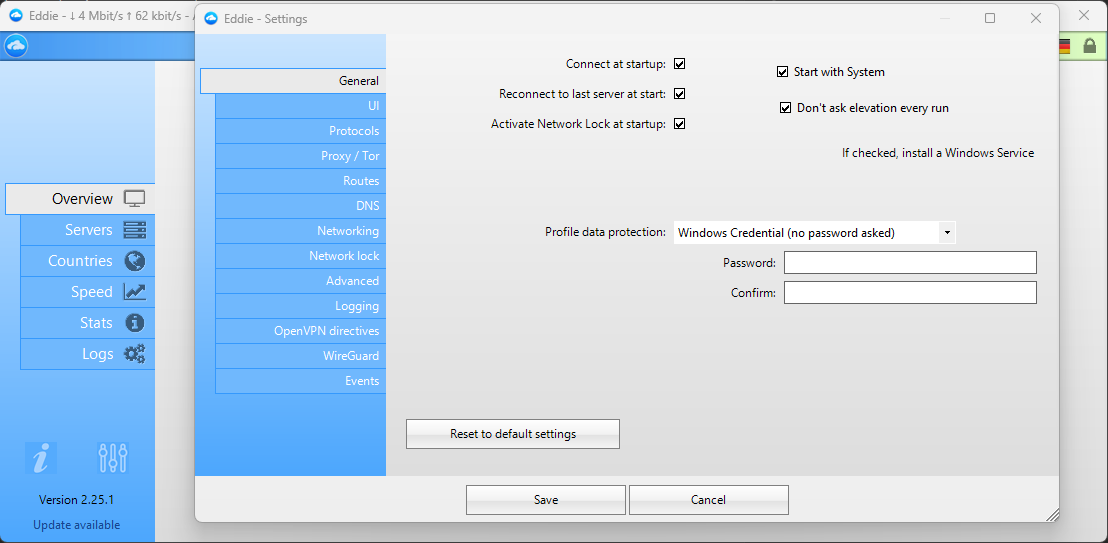
Turn on connect at startup, reconnect to the last server, activate Network Lock at startup, and start with system. The VPN is then up before you open anything else.
Network lock
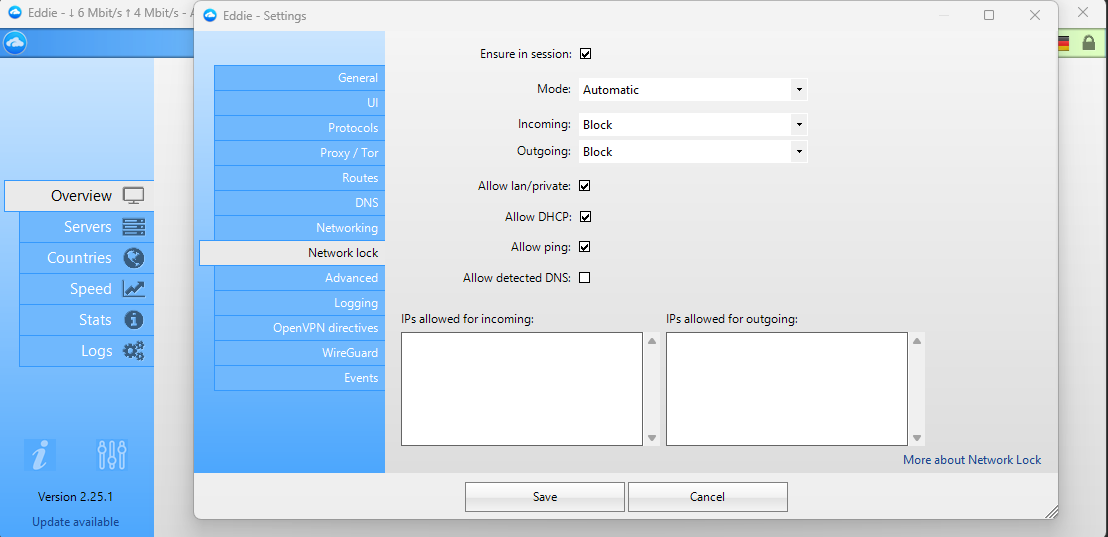
This is the kill switch. Leave it on Automatic. If the tunnel drops, it blocks all traffic so your real IP cannot leak. Keep "Allow lan/private" checked so your local network keeps working.
Routes (optional)
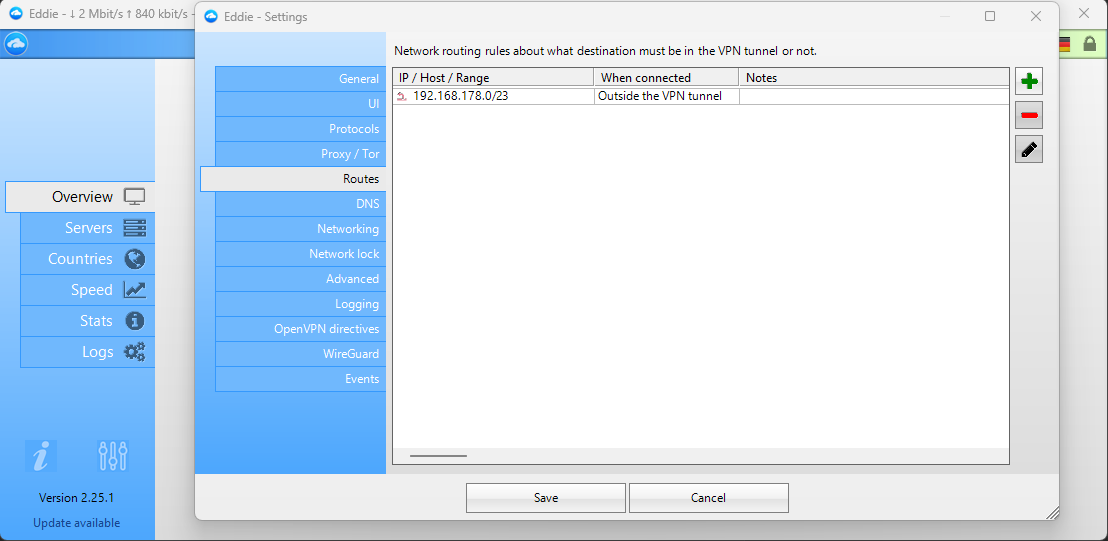
Add your local network range as "Outside the VPN tunnel" if you want to keep reaching devices on your LAN, such as your router or a NAS, while connected. Use your own subnet.
Connect to a server
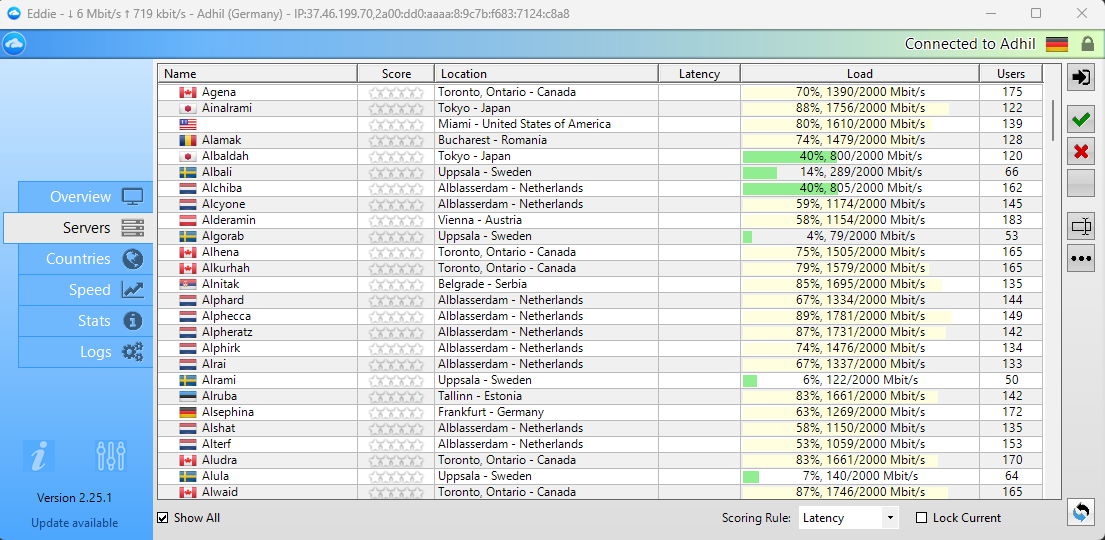
Open the server list, pick one near you, and double-click to connect. Every AirVPN server supports port forwarding, so any of them works.
Forward the ports
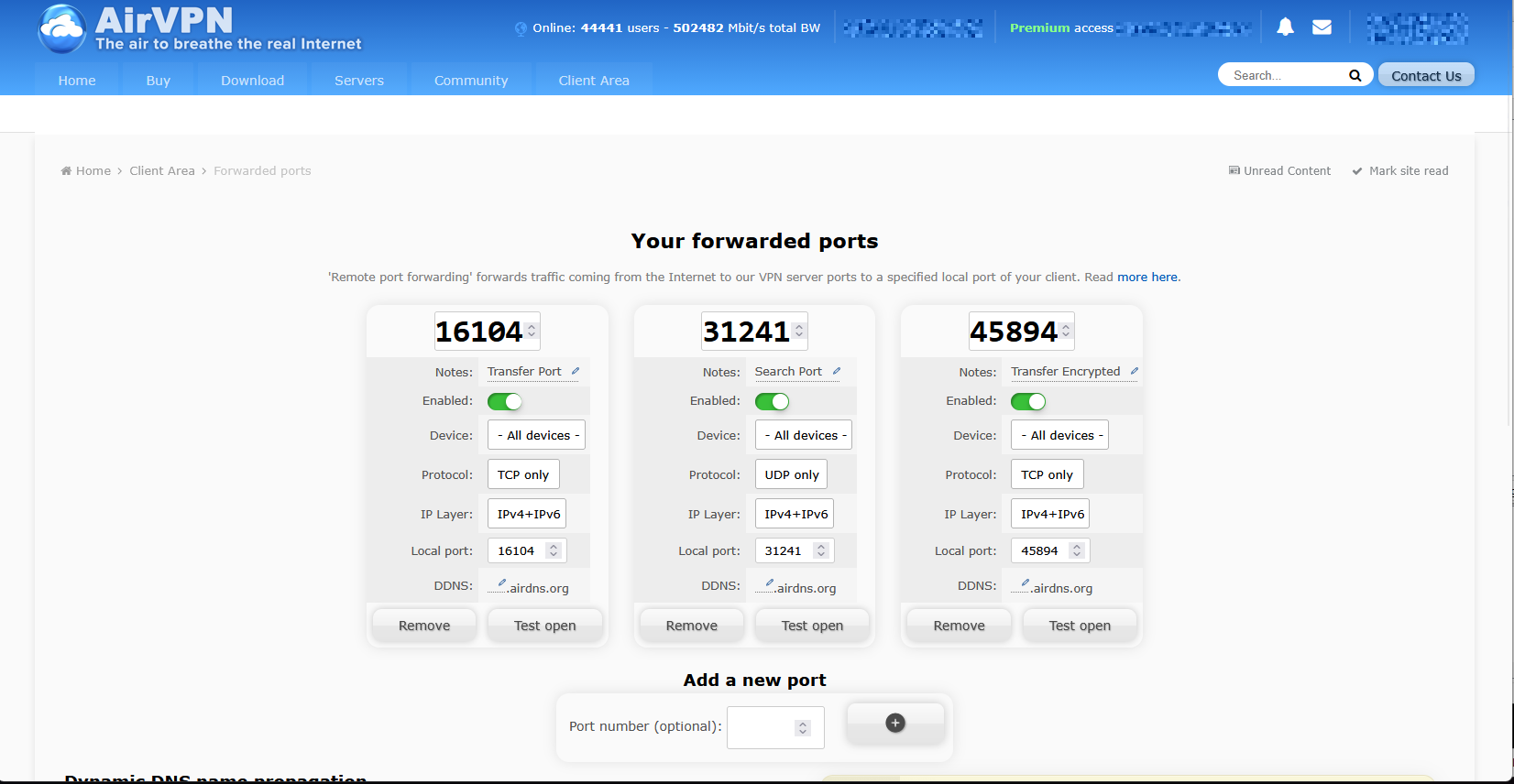
Open the forwarded ports page in your account and add three ports. The numbers themselves do not matter, so pick any free ones, but copy the labels and protocols exactly:
- Transfer Port, TCP only
- Search Port, UDP only
- Transfer Encrypted, TCP only
Leave the IP layer on IPv4+IPv6. Note the three numbers, you will need them in DC++.
Configure DC++
Point DC++ at the same three ports. The screenshot shows the three steps:
- Open the settings.
- Go to Connectivity, then Manual configuration.
- Enter the same numbers you set on AirVPN: the Transfer Port in Transfer port, the Transfer Encrypted port in Encrypted transfer port, and the Search Port in Search port. Then select "Active mode (I have no router / I have configured my router)", and set the same in the IPv6 section below.
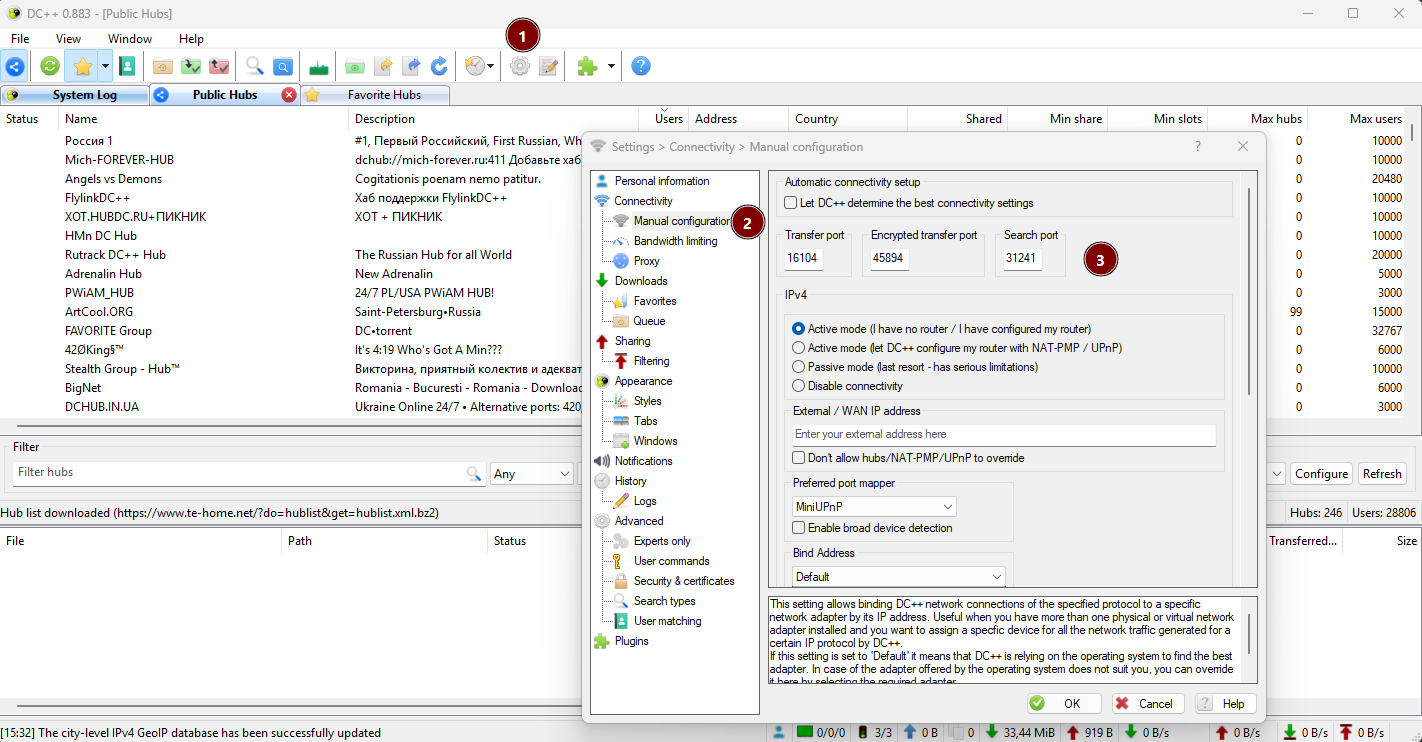
Leave the external IP field empty. DC++ then uses the address the hub sees, which is the VPN's.
Use "Test open" on each port card in AirVPN to confirm the ports are reachable. In DC++, active mode is working once your searches return results and other users can download from you.
Keep Eddie connected whenever you use DC++. If the VPN is down, Network Lock blocks the connection instead of exposing your real IP.
*Referral link that helps support DCVault: https://airvpn.org/?referred_by=746001